For creators and small business owners
Lock down your email, your creator accounts, and every AI tool you've clicked “Allow” on.
The AI Lockdown Kit is a 47-page guide with one page for each of 12 platforms you probably use every week, from Gmail and YouTube to Canva, Skool and PayPal. It also walks you through a 20-minute check of the apps and AI tools connected to your accounts, and gives you a printable plan for the day something looks wrong.
Get the AI Lockdown Kit for $17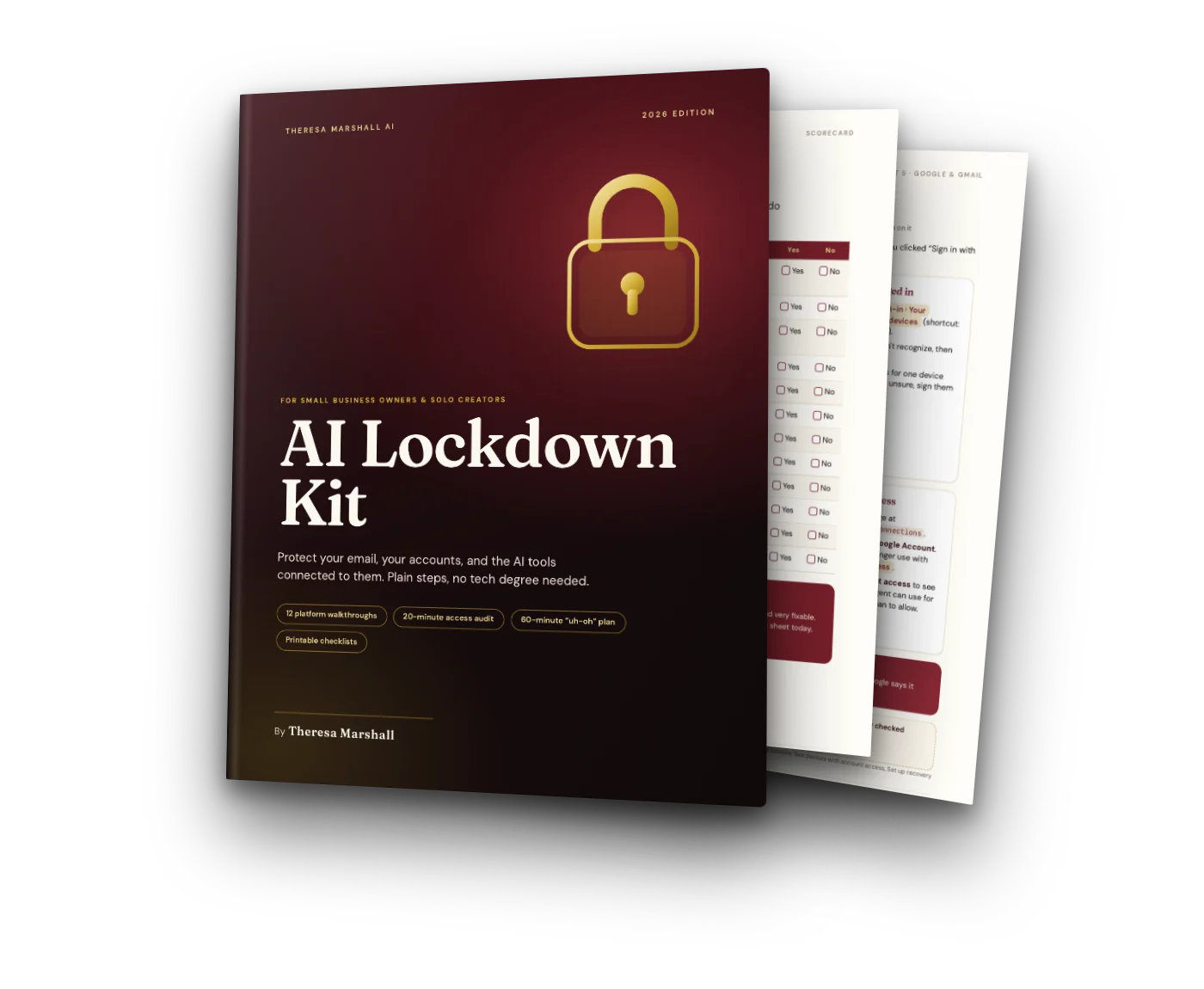
- 47 pagesPDF, US Letter, prints well
- 12 platformsOne step-by-step page each
- 20 minutesThe AI access audit
- 60 minutesThe “uh-oh” plan, in order
- Every platform step was checked against that platform's own help center on October 26, 2026.
No. 1 · Why now
Most of us clicked “Allow” and never looked back.
Every AI tool you connect gets a key to something. Maybe your inbox, maybe your Google Drive, maybe your payment account. That's normal. It's also exactly where trouble starts in 2026.
- You sign in with Google on half your tools and couldn't list them all if you tried.
- Your VA, editor, or designer logs in with your password.
- Your backup codes are... somewhere.
- A “brand deal” email or a call “from Google” felt a little off, and you weren't sure what to do next.
A real story from April 2026
The side door at Vercel
Vercel, a big web hosting company, reported a security incident that started at a third-party AI tool called Context.ai. One employee had connected that tool to their work Google account.
Attackers broke into the AI tool, used its Google connection to take over the employee's Google account, and got into some of Vercel's internal systems from there.
The way in was an app connection an employee had approved. A solo business has connections like that too, and usually nobody is checking them.
Source: Vercel, “Vercel April 2026 security incident” security bulletin. Part 1 of the kit covers this story and four 2026 research findings, each with its source.
No. 2 · How it works
Every platform page shows you exactly where the switch is.
Knowing you should turn on 2-step login doesn't help much when you can't find the setting in Canva. So every platform gets its own page with the exact tap path, the four checks that matter, and the scam to watch for on that platform.
Most steps are a toggle, a button, or a code from your phone. If you can log in to Instagram, you can do everything in here. Do one platform a night or all of them on a Sunday afternoon. Either way works.
No. 3 · What's inside
Six parts and a toolkit, in the order you'll use them.
- Start here
Welcome and the Lockdown Scorecard p. 2
Twelve yes/no questions that take about 3 minutes. Each “No” points you to the part of the kit that fixes it.
- Part 1
Why AI changed account safety p. 5
The Vercel side-door story, four 2026 research findings in plain words with their sources, the 10 kinds of access an AI tool can hold, and the 4 permission settings for any AI tool, plus the 5 defaults I never change.
- Part 2
Lock your front door p. 10
A password manager and your Top 10 logins, the 2-step login ladder from text codes up to passkeys, and how to lock your phone number so nobody can move it to their SIM.
- Part 3
Spot the scam before it spots you p. 15
The 4 red flags, the call-back rule, spotting lookalike website names, a family safe word for fake voice calls, protecting your email domain, and when a credit freeze makes sense.
- Part 4
The 20-Minute Access Audit p. 18
Find the connected apps, AI tools, API keys, browser extensions, automations, custom GPTs and connectors. Then decide for each one: keep, restrict, replace the key, or remove. Ends with a 5-question check to run before you connect anything new.
- Part 5
Creator Platform Lockdown p. 23
Twelve platforms, one page each. Every page covers 2-step login, logged-in devices, account recovery, who has access, and the scam to watch for, with a checkbox row at the bottom.
- Part 6
The 60-Minute “Uh-Oh” Plan p. 37
What to do, in order, if an account looks wrong. A print-this page for the first hour, a quick lookup by what you're seeing, and a page for your incident notes.
- Toolkit
Trackers, worksheets, glossary, sources p. 40
Platform Tracker, Access Audit worksheet, AI tool permission card, a WordPress page (only if you have a site), a glossary in plain words, and every source with its link.
Look inside
Real pages from the kit.
Tap any page to see it bigger.
No. 4 · The 12 platforms
One page for each place your business lives online.
Each page tells you whether to grab your phone or your computer, how long it takes, and the scam that targets people on that platform. Tap one to see its scam.
Google & GmailComputer · about 10 minutes · start here
Scam to watch for: The fake Google call. Someone calls or texts “from Google” and asks you to read back a code. Google says it won't call you to verify a code. Never share one, even with someone who sounds official.
YouTubeYouTube Studio · about 10 minutes
Scam to watch for: The too-good sponsorship. A “brand deal” email asks you to download a contract, a media kit, or editing software. The file steals your login session. YouTube says to verify brand deals by calling the company at a publicly listed number.
InstagramPhone app · about 8 minutes
Scam to watch for: The copyright or verification DM. “Your account will be deleted in 24 hours” or “You qualify for the blue badge,” plus a link to a login page. The urgency is the trap. Open the Instagram app yourself and check your account status there.
FacebookComputer or phone · about 10 minutes
Scam to watch for: The fake “Meta Support” warning. A message says your Page broke the rules and will be disabled unless you “appeal” through a link. The link collects your password and 2FA code. Real notices show up inside Facebook itself.
TikTokPhone app · about 8 minutes
Scam to watch for: The fake creator program invite. A DM offers a spot in a creator fund, a brand campaign, or a “verification review” and sends you to a login page. Check offers inside TikTok's own creator tools, never through a link someone sent you.
CanvaComputer · about 6 minutes
Scam to watch for: The “someone shared a design with you” email. Scammers copy Canva's share emails and point the button to a fake login page. Open Canva yourself and look in your shared folders instead of clicking.
SkoolComputer · about 5 minutes
Scam to watch for: The fake Skool support DM. Someone messages inside Skool claiming to be support, or offers a tool that needs your login or a cookie code. Skool's own security page says never to share your password or login code, and to steer clear of any tool that asks you to copy a cookie or authcode.
PayPalpaypal.com · about 8 minutes
Scam to watch for: The fake invoice or money request. A real PayPal email shows an invoice you never ordered, with “call this number if you didn't authorize.” The number goes to a scammer who asks for remote access to your computer. Don't call. Log in to PayPal yourself.
StripeStripe Dashboard · about 8 minutes
Scam to watch for: The “account restricted” email. A message says your payouts are paused until you “verify your identity” through a link. Type dashboard.stripe.com yourself and look for real alerts there.
systeme.ioComputer · about 5 minutes
Scam to watch for: The “payment failed” or “account suspended” email. A copycat message pushes you to log in through a link to fix billing. Type systeme.io yourself, and never forward a login code to anyone.
FiverrComputer · about 6 minutes
Scam to watch for: The off-platform buyer. A “buyer” asks you to chat on Telegram or WhatsApp, pay outside Fiverr, or open a project file from an outside link. Keep every message, file, and payment inside Fiverr.
UpworkComputer · about 6 minutes
Scam to watch for: The fake job post. A “client” asks you to move to Telegram, install software for a “test task,” or pay for training. Real clients pay through Upwork and talk through Upwork.
Using a platform that isn't listed? Parts 1 to 4 and Part 6 work for any account, and Part 4 also shows where to review connected apps in Microsoft if you use Outlook or 365.
Try it · 60 seconds
Four questions from the Lockdown Scorecard.
The full Scorecard in the kit has 12. Nothing you click here is saved or sent anywhere.
Your open doors
Answer honestly. Nobody's grading you. Your “No” answers are your to-do list.
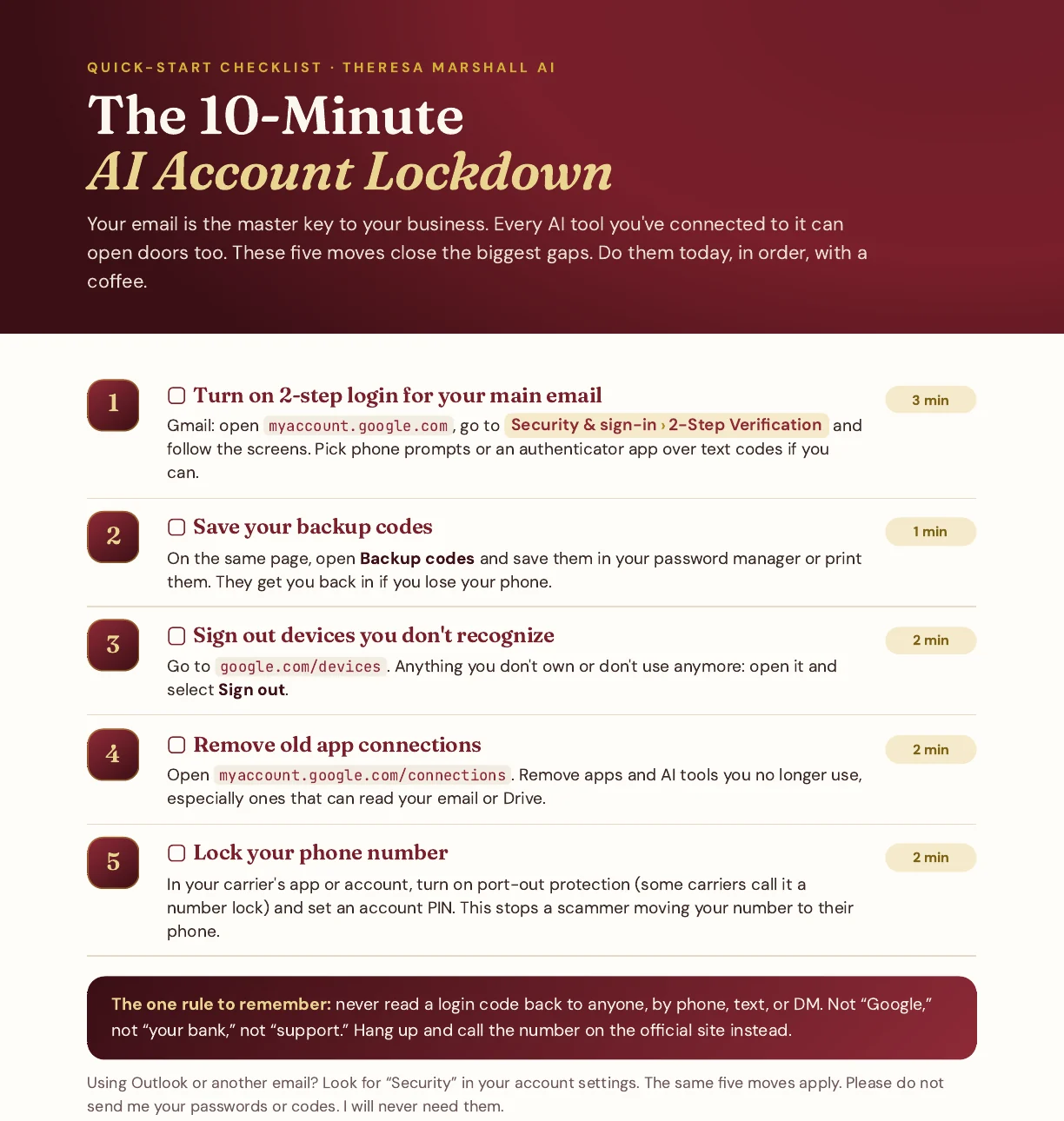
Included with the kit
The 10-Minute AI Account Lockdown.
Short on time today? Start with this one-page checklist. It covers the five moves that close the biggest gaps in your main email, in order.
- Turn on 2-step login for your main email 3 min
- Save your backup codes 1 min
- Sign out devices you don't recognize 2 min
- Remove old app connections 2 min
- Lock your phone number 2 min
A separate 1-page PDF. Print it and stick it next to your desk.
No. 5 · Is it for you?
Who this kit is for.
It's a good fit if
- You run a small business or create content, and your income runs through accounts like Gmail, YouTube, Instagram, PayPal or Stripe.
- You've connected AI tools to your accounts and aren't sure what they can reach.
- Someone else logs in to your stuff: a VA, an editor, a designer.
- You'd like plain steps you can finish in an afternoon, one platform at a time.
It's probably not for you if
- You work in IT or security. This was written for everyone else.
- You want software that does it for you. This is a guide, and you click the switches yourself.
- You're setting policy for a large company with its own IT team.
- You want a promise you'll never be hacked. Nobody can honestly make that promise. The kit helps you fix the usual weak spots and gives you a plan if something still goes wrong.

Who made this
Made by Theresa Marshall.
Theresa Marshall is the founder of DataManiacs AI Media Group. From South Florida, she builds AI websites for small businesses and makes AI ads, avatars, UGC, and films. She kept most steps in this kit down to a toggle or a code from your phone, because nobody has time for a security rabbit hole.
Please do not send me your passwords or login codes. I will never need them, and neither will anyone who is really trying to help you.
Everything in one download
AI Lockdown Kit
One-time payment. No subscription.
- The AI Lockdown Kit, 47-page PDF
- 12 Creator Platform pages, checked against each help center on Oct 26, 2026
- The 20-Minute Access Audit and the 60-Minute “Uh-Oh” Plan
- Lockdown Scorecard, Platform Tracker, Access Audit worksheet and AI tool permission card
- Included: The 10-Minute AI Account Lockdown, 1-page PDF
30-day money-back guarantee
Read it, try the steps on your own accounts, and see how it feels to know what's connected to what. If the kit isn't useful to you, email support@realtheresamarshall.com within 30 days of purchase and you'll get a full refund of the $17.
Questions
Before you buy
Do I need to be technical?
No. If you can log in to Instagram, you can do everything in here. Most steps are a toggle, a button, or a code from your phone, and each one shows exactly where to tap, like Settings › Security.
What exactly do I get, and how?
Two PDFs: the 47-page AI Lockdown Kit and the 1-page 10-Minute AI Account Lockdown checklist. You download both right after checkout. They're US Letter size and print well, so you can tick the boxes by hand.
I don't use all 12 platforms. Is it still worth it?
Yes. The Scorecard, the access audit, the scam habits and the “uh-oh” plan apply to every account you have. Skip any platform page you don't need. Start with Google & Gmail, because so many other logins lean on it.
How long will it take?
The Scorecard takes about 3 minutes, the checklist about 10, and the access audit 20. Each platform page lists its own time, between about 5 and 10 minutes. An easy rhythm: the checklist today, the rest over a weekend.
Will this make my accounts hack-proof?
No. Nobody can honestly promise that. The kit walks you through the usual weak spots (text-only 2-step login, forgotten app connections, phone-number takeovers, scam calls and DMs) and gives you a step-by-step plan if something still goes wrong.
Is the information up to date?
Every platform step was checked against that platform's own help center on October 26, 2026. Apps move their menus around, so each page names the setting, and you can search the platform's help center for it if a label looks a little different on your screen.
Will you ever ask for my passwords or codes?
Never. Nothing in the kit asks you to share a password, a login code, or access with anyone, including me.
Is this PLR?
Partly, and it's labelled. The kit includes licensed content (PLR), rewritten and expanded by Theresa Marshall. The 12 Creator Platform pages, the Lockdown Scorecard, the trackers and the 10-Minute checklist are new. Your purchase is for your own use and doesn't include resale rights.
Is this legal or professional security advice?
It's general education for small business owners and creators. For a serious incident involving customer data or money, the “uh-oh” plan tells you who to contact, and a professional is worth the call.
What if it's not for me?
Email support@realtheresamarshall.com within 30 days of purchase and you'll get a full refund. See the guarantee above.
Your logins are your business. Give them one quiet afternoon.
Grab a coffee, open the Google & Gmail page, and start there. By the end of the weekend you'll know what's connected to what, and what to do if something looks wrong.
Get the AI Lockdown Kit for $17